How to Restore HEIC Image Support in Ubuntu 26.04 LTS
Introduction
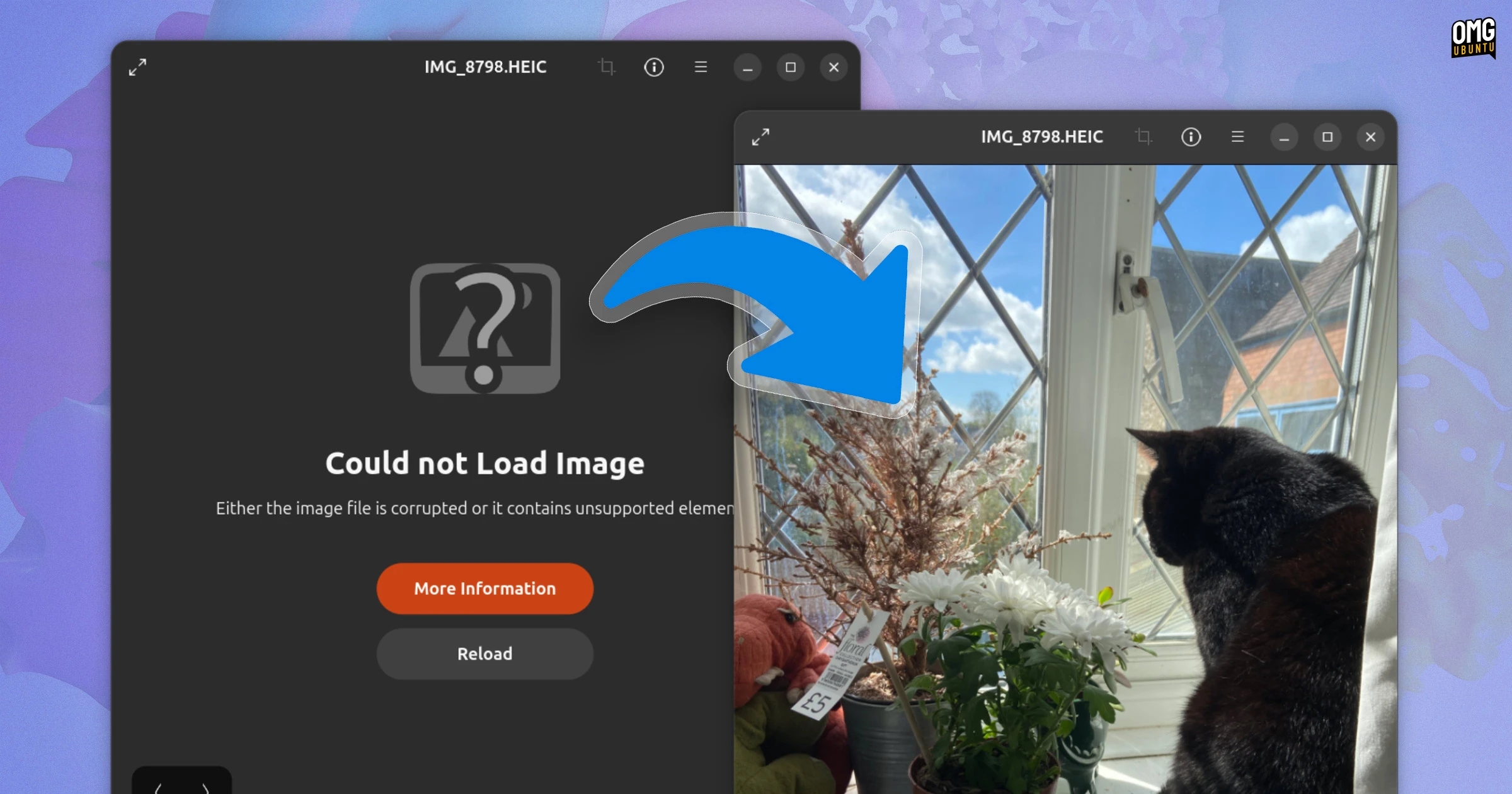
If you've recently upgraded to Ubuntu 26.04 LTS and tried to open HEIC photos from your iPhone or Android device, you've likely seen the frustrating “Could not load image” error in the default Image Viewer. This isn't a bug—it's an intentional removal of the HEIC decoder library to streamline the operating system. HEIC (High Efficiency Image Container) is a modern image format that uses H.265/HEVC compression, and it's the default format for many smartphone cameras. Without the decoder, Ubuntu simply can't display these files. Fortunately, reinstalling the necessary library is a straightforward process that takes just a few minutes. This guide walks you through the steps to fix HEIC images not loading in Ubuntu 26.04 LTS, restoring full compatibility with your photos.

What You Need
- Ubuntu 26.04 LTS installed and running
- An active internet connection
- Access to a terminal (Ctrl+Alt+T)
- Sudo privileges (your user password)
- A HEIC image file to test (optional but recommended)
Step 1: Open a Terminal Window
Press Ctrl+Alt+T on your keyboard to launch the terminal. You can also search for “Terminal” in the application menu. This is where you'll run all the commands needed to install the HEIC support.
Step 2: Update Your Package Lists
Before installing any new software, it's good practice to refresh your package repository information. Run the following command:
sudo apt updateEnter your password when prompted. This ensures you're pulling the latest version of the HEIC library from Ubuntu's repositories.
Step 3: Install the HEIC Decoder Library
The missing component is the heif-gdk-pixbuf package, which provides the necessary decoder plugin for GNOME-based image viewers (like the default Eye of GNOME). Install it with this command:
sudo apt install heif-gdk-pixbufIf you prefer a more minimal installation, you can also install libheif1 alone, but the gdk-pixbuf plugin is what makes it work seamlessly in the file manager and image viewer. The command above will automatically pull in libheif1 as a dependency.
Step 4: Verify the Installation
After the installation completes, check that the library is correctly installed by running:
apt list --installed 2>/dev/null | grep heifYou should see entries like heif-gdk-pixbuf and libheif1 listed. This confirms the decoder is present on your system.
Step 5: Test with a HEIC File
Now it's time to test if the fix works. Locate a HEIC image file on your computer (for example, one you transferred from your smartphone). Double-click it—if it opens without error in the Image Viewer, you're done! Alternatively, you can use the terminal to view a file:
eog your-image.heicReplace your-image.heic with the actual file path. The image should display correctly.
Step 6: (Optional) Restart Your Session
If the image viewer still shows “Could not load image,” try logging out and logging back in, or simply restart your computer. This ensures that the new library is fully loaded by the desktop environment. In most cases, a restart isn't necessary, but it can help if you've been logged in during the installation.
Tips and Troubleshooting
- Still not working? Make sure you're using the default Image Viewer (Eye of GNOME). Third-party viewers like GIMP may require additional plugins.
- Alternative package: If the above approach fails, try installing libheif-examples which includes command-line tools for converting HEIC images to JPEG or PNG. However, this doesn't fix the image viewer issue—stick with heif-gdk-pixbuf for GUI support.
- For file manager thumbnails: Install heif-thumbnailer via
sudo apt install heif-thumbnailerto see previews in Nautilus. - Outdated packages? If your Ubuntu 26.04 LTS is still using older repositories, run
sudo apt update && sudo apt upgradefirst. - Future-proofing: After major updates, the package might be removed again. Remember this guide if you reinstall or upgrade.
With these steps, you've successfully restored HEIC image support in Ubuntu 26.04 LTS. Now you can view all your high-efficiency photos directly in the Image Viewer without any errors.